
Header Elements
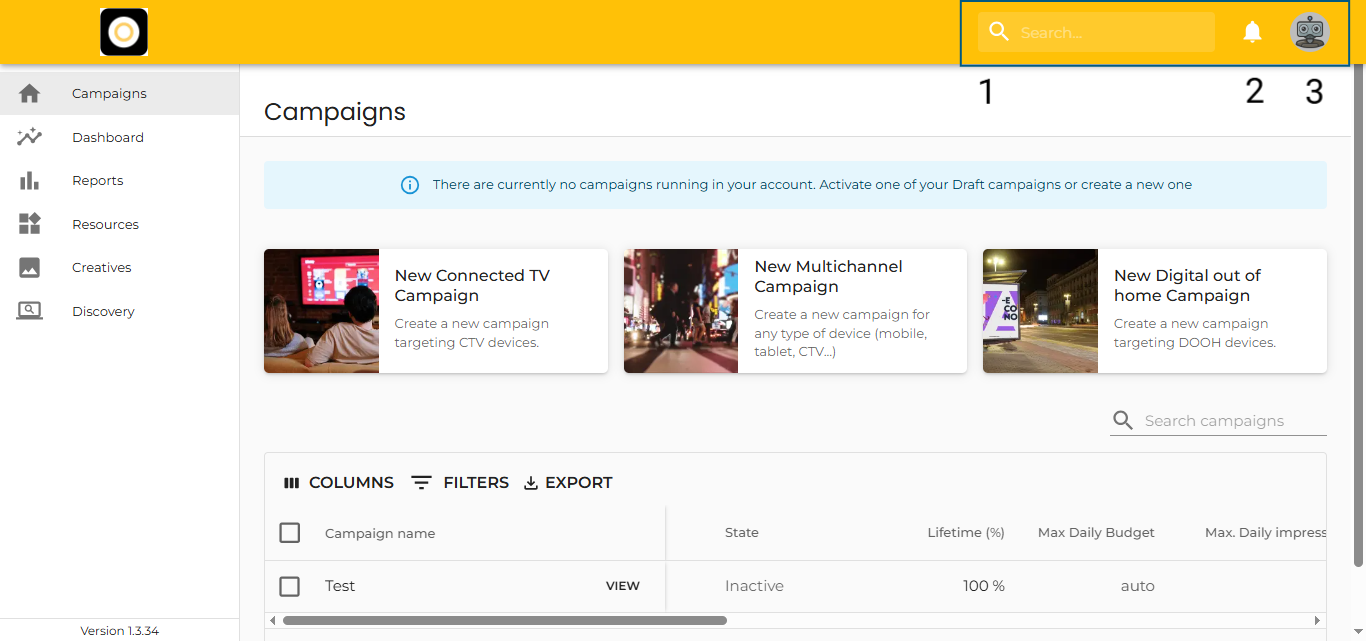
📍 Header Elements
No matter where you are in the Targetoo DSP platform, the Header is always available and gives you access to key tools and settings. Here’s what you’ll find:
1. Universal Finder (Search Bar)
2. Notifications
3. User Section
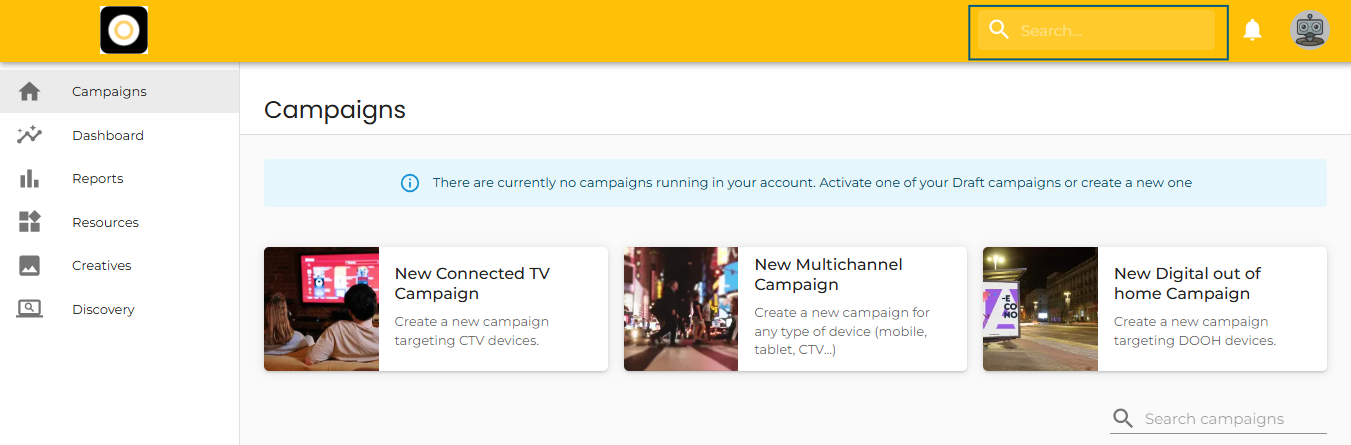
Default Search Order
Results will appear in this order by default:
Campaign, Analytics, Creatives, Geolists, Audiences, Deals, Publisher Lists.
1. Universal Finder (Search Bar)
The Universal Finder allows you to quickly search across multiple sections of the platform, including:
-
Campaigns
-
Reports
-
Creatives
-
Resources (Audiences, Deals, Geolists, Publisher Lists)
🔍 How Search Works
Click the search bar and start typing — results will appear instantly in a dropdown view .
🔤 Search Logic
-
Searches can be made using Name or ID.
-
Results are prioritized based on the section you’re currently in.
-
Each result will show the section and subsection where it belongs.
-
For Creatives, Deals, Audiences, and Campaigns, you’ll also see the creation date.
2. Notifications
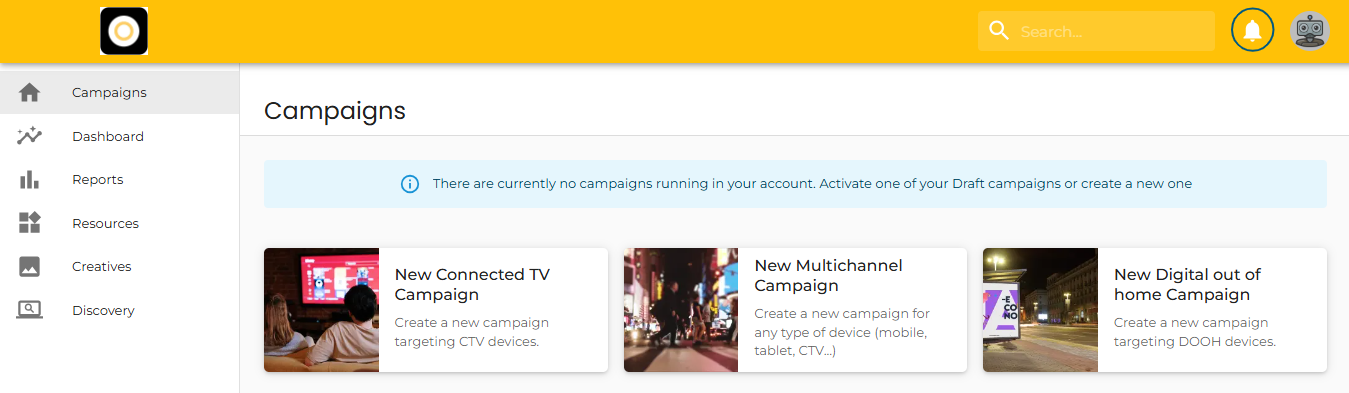
Stay informed with system alerts, campaign updates, and direct messages from your Account Manager.
📥 How to Access Notifications
-
Click the bell icon next to the Search bar to open your notifications.
-
For more detailed control, head to your My User section to manage notification settings.
3. User Section
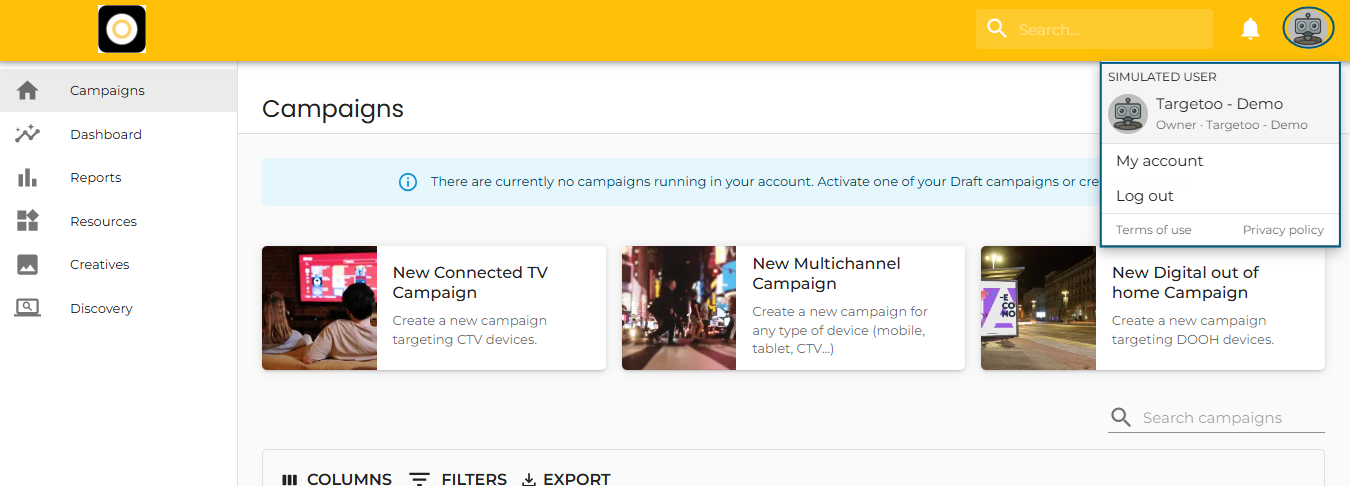
Click your profile picture in the top-right corner to open the User Menu.
My Account Overview
-
Basic Details:
-
Profile picture
-
Username
-
Role
-
Email address
-
User creation date
-
Option to change your password
-
Log Out
To sign out, click your profile picture and select Log Out from the dropdown menu.