
Overview Campaigns
Campaigns Section
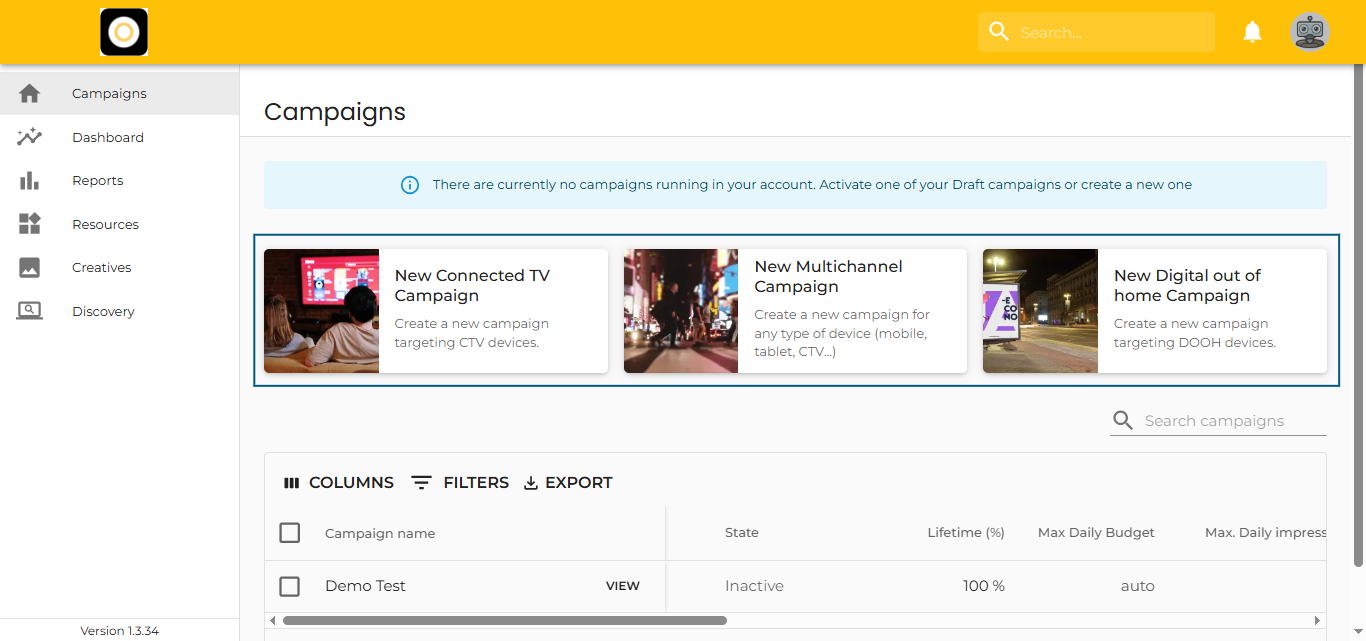
When you log into the Targetoo platform, you’ll land directly in the Campaigns section. You can return here at any time by clicking “Campaigns” in the Left Menu, as shown in the screenshot.
This section allows you to create new campaigns and manage existing ones through a powerful, easy-to-use interface.
Creating Campaigns
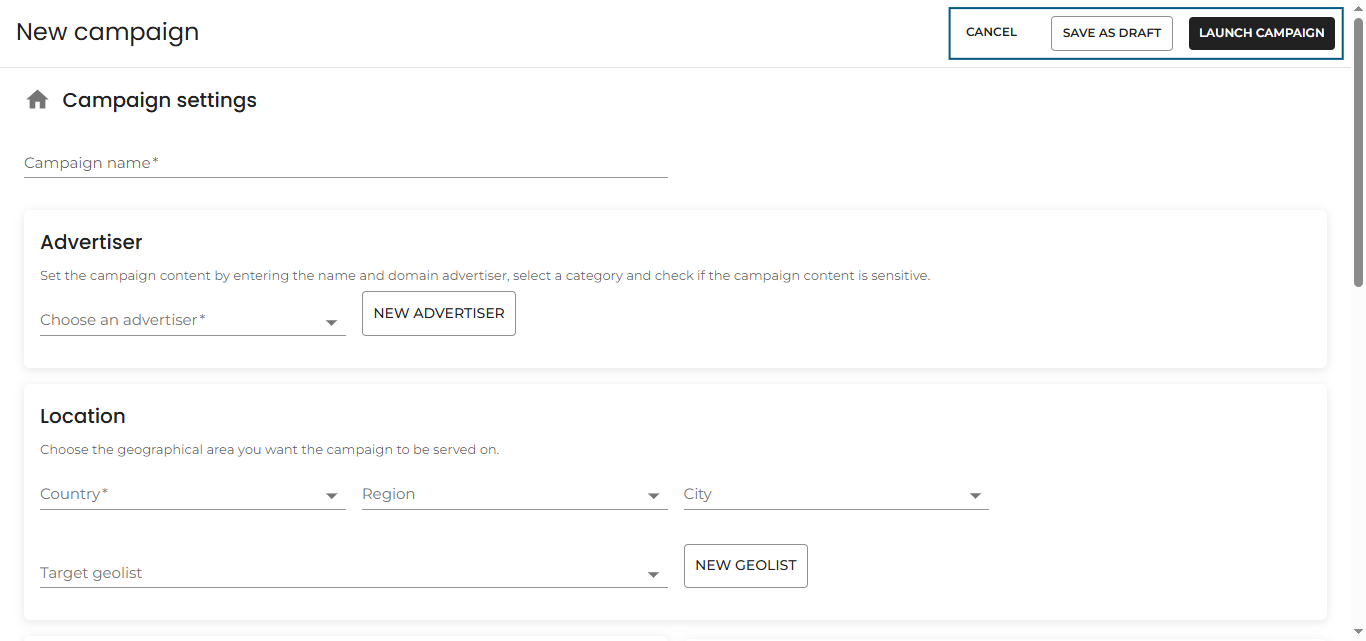
At the top of the Campaigns area, you’ll find several action buttons for launching new campaigns. Clicking any of these opens the Campaign Launcher, where you can:
-
Set up and launch a campaign immediately
-
Save a campaign as a draft for later editing or activation
These options are available at any time via the buttons in the top-right corner, highlighted in the interface screenshot.
Managing Existing Campaigns
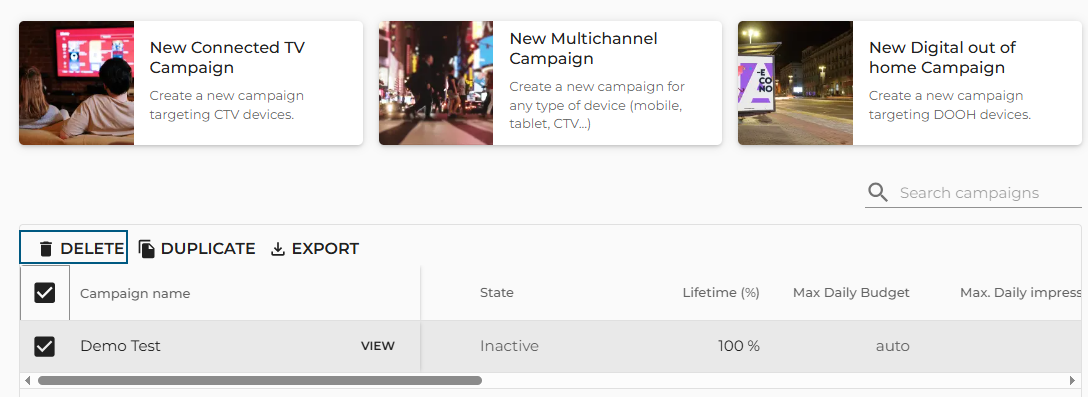
All your existing campaigns are listed in the Campaign Table. From here, you can:
-
Delete campaigns
-
Duplicate campaigns
-
Export campaign data
-
Customize your table view
Delete a Campaign
- Select one or more campaigns from the table.
- Click the “Delete” button in the top-left corner.
- Confirm the deletion when prompted.
- A green toast notification will confirm the campaign(s) were successfully deleted.
Duplicate a Campaign
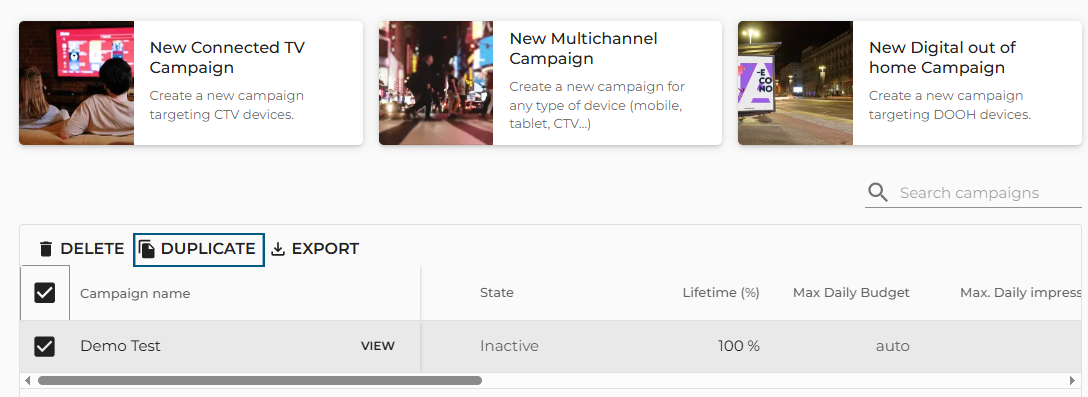
- Select one campaign (bulk duplication is not supported).
- Click the “Duplicate” button.
- Enter a name for the new campaign.
- The system will copy all settings and create a new campaign in the table.
Export Campaign Table
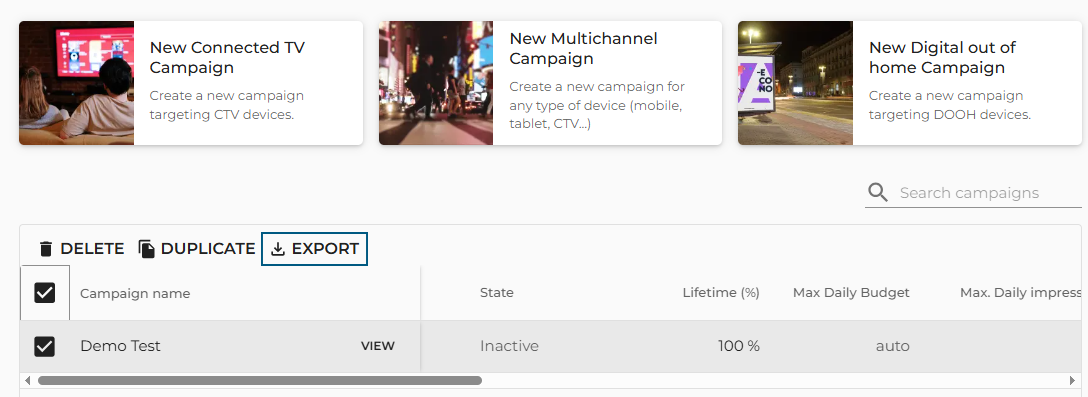
- Select the campaign(s) whose data you want to export.
- Click “Export”.
- A
.csvfile will download automatically, containing:-
All currently visible columns
-
The campaign ID
-
Managing the Campaign Table View
Customize how your Campaign Table looks and behaves to better fit your workflow:
Choose Displayed Columns
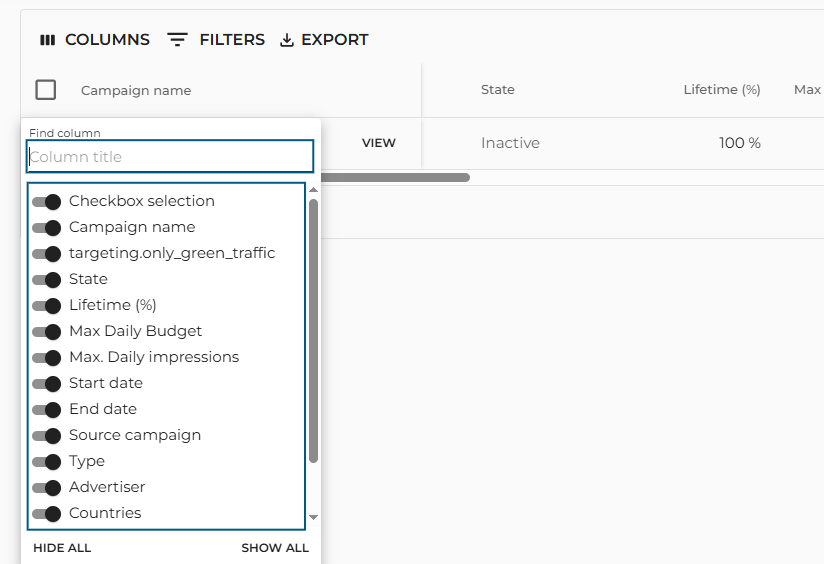
Click “Columns” and use the toggle switches to show or hide specific columns:
-
Checkbox selection, Campaign name, State, Lifetime (%), Delivery, Max Daily Budget
-
Max. Daily Impressions, Start Date / End Date, Source Campaign, Type, Advertiser
-
Countries, Creation Date, Last Updated
Use the search bar within the column selector to quickly find any column name.
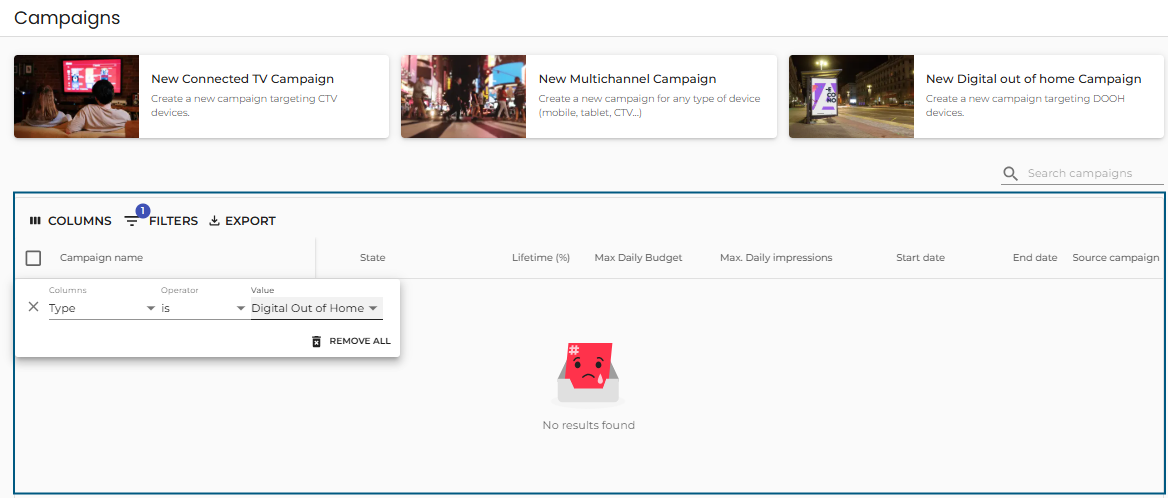
Filter Campaigns
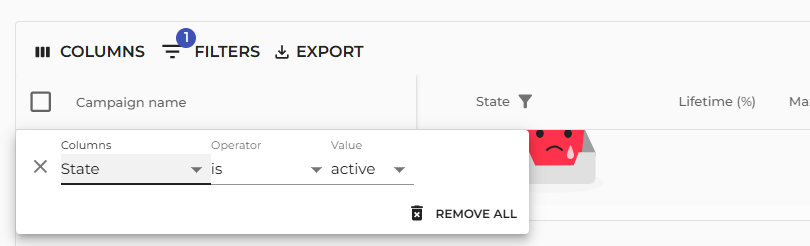
You can filter the table using:
-
Campaign Name, State, Max Daily Budget, Start Date / End Date
-
Type, Advertiser, Countries, Creation Date
-
Last Updated
To apply filters:
-
Click the “Filters” button and select your criteria
-
Or, click the ellipsis (⋯) on any column header and filter directly
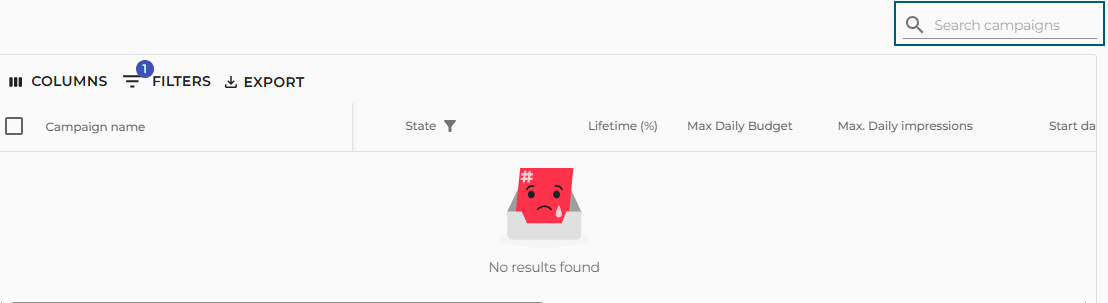
Only campaigns matching your filters will appear in the table.
Search Campaigns
Use the Search Bar at the top-right corner of the Campaign Table to find specific campaigns by name or keyword.