
Additional Filters
To refine your report data, you can apply one or multiple filters based on a wide range of variables such as campaign, ad exchange, creative type, and more.
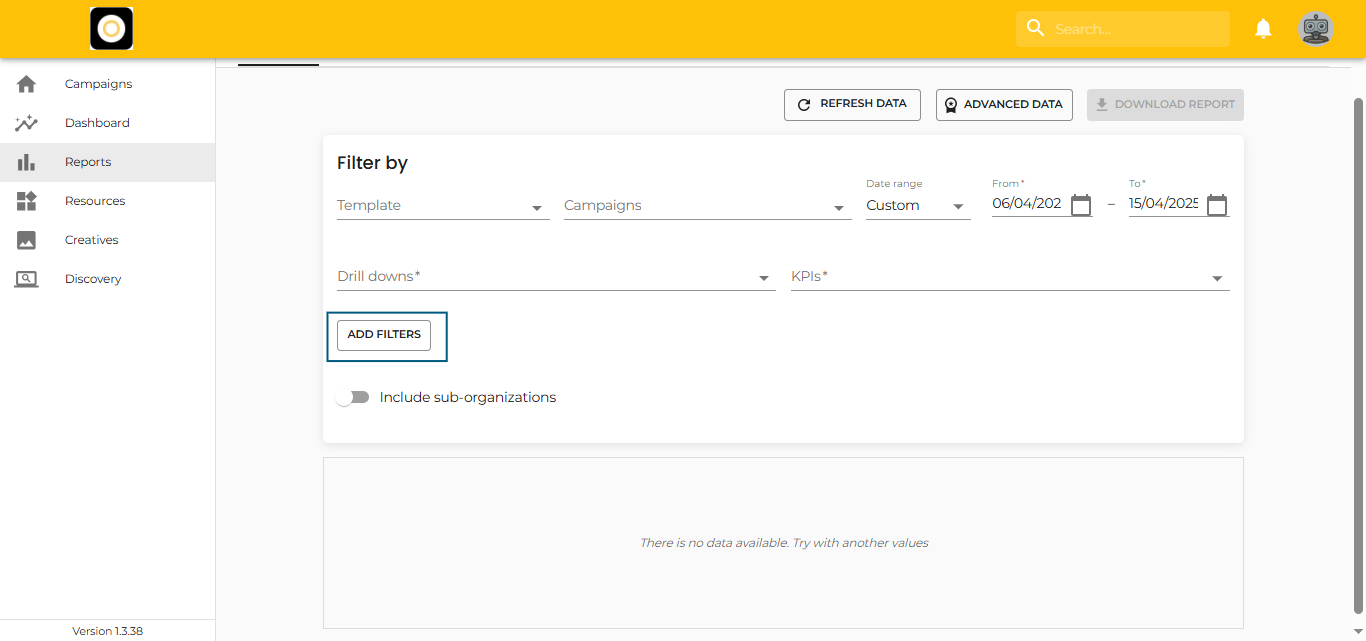
How to Apply a Filter
- Choose a Variable
Select the filter category — e.g., Ad Exchange, Campaign, Creative Type, etc. -
Select an Operator
Pick from:-
is equal to
-
is not equal to
-
-
Choose or Enter a Value
-
If the value exists in the system, a checklist will appear — just select the desired option(s).
-
For custom values, simply type your value, then click ‘Add (…)’ from the dropdown.
-
Once a value appears as a pill in the filter section, it means the filter is active and will be applied to the report.
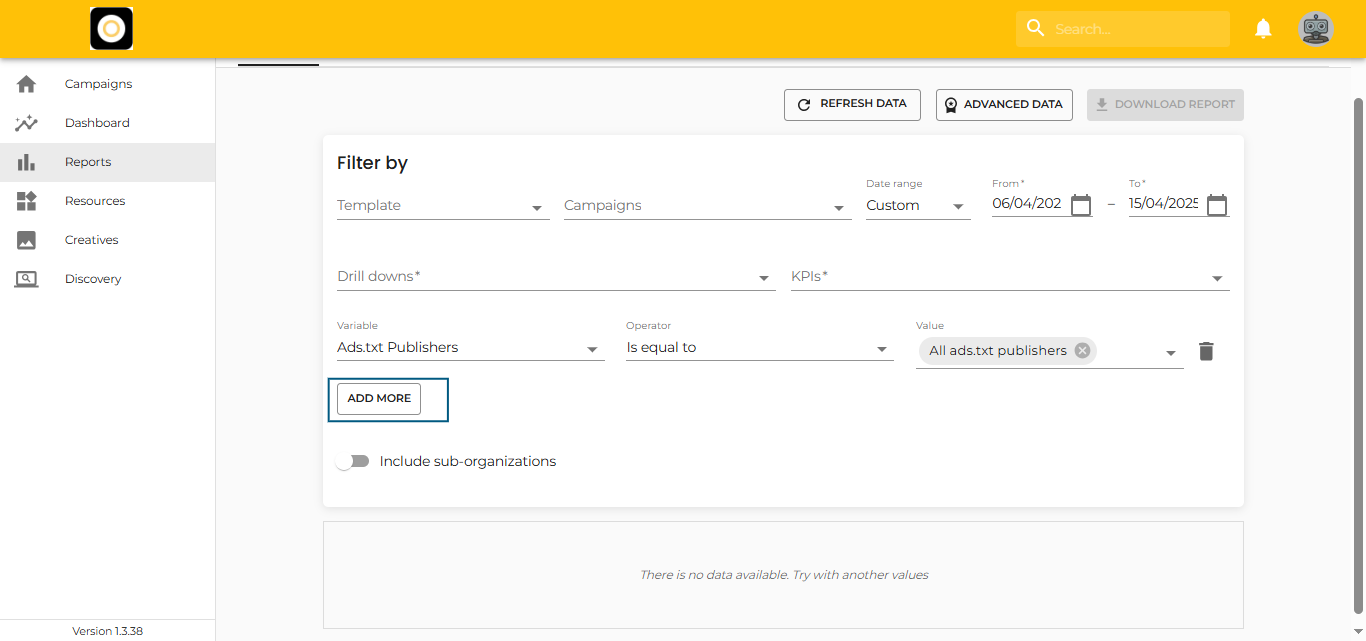
Add More Filters
Click on “Add more” to include additional filters for more precise targeting.
Modify Existing Filters
You can modify a filter by:
-
Removing individual values (click the “X” on the pill)
-
Opening the dropdown to add or change selections
-
Replacing the entire filter by removing it and adding a new one
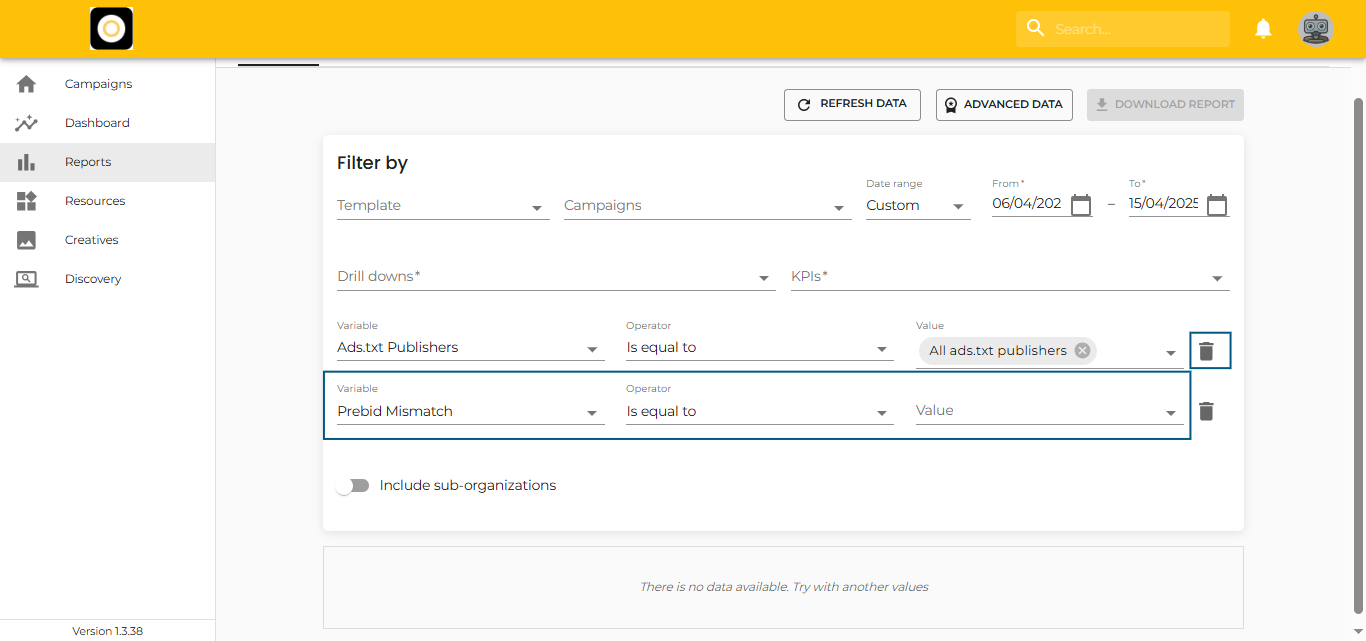
Remove Filters
To delete an entire filter, just click the trash bin icon at the end of the filter line.
Use Cases
-
✅ Want to check only video ads across all campaigns?
Select Creative Type, choose “is equal to”, and check Video from the list. -
🚫 Want to exclude a specific Ad Exchange, like GoogleAdx?
Choose Ad Exchange, select “is not equal to”, and check GoogleAdx from the list.